
From the Devcon 8 volunteer guide. Roles work the same way at every Devcon, so this is how the job is done. Anything tied to the Lisbon venue, the schedule or names is marked as still to be confirmed.
The basics
Special Rooms is a production and communications area. It covers the bookable meeting and discussion rooms, the Interview and Press Room, and the Content Corner, which holds the Podcast Room. Check in at the Volunteer Check-In desk with the Coordination Support team. Where the desk and Volunteer HQ are at CCL is still to be confirmed.
At Devcon 8 attendees booked meeting rooms and discussion corners at rooms.devcon.org, and Devcon named its meeting suites on the official map after Ethereum upgrades. CCL lists more than 30 breakout rooms. Which rooms open for booking in Lisbon, and their names, is still to be confirmed.
The booking tool below is the Devcon 8 version. The screens and steps are a guide to how it works. Devcon 9 may change the tool, the URLs or the limits.
Before your shift
You need a tablet in landscape or a laptop. A phone works, but the room grid is cramped on a small screen.
- Go to rooms.devcon.org/Web/index.php and sign in with the volunteer login the Special Rooms lead gives you. Do not share it, and never sign in on an attendee's phone.
- Open the grid for your rooms: general rooms at schedule.php?sid=1, and the EF-only rooms at schedule.php?sid=2. You can also use the Schedule menu at the top.
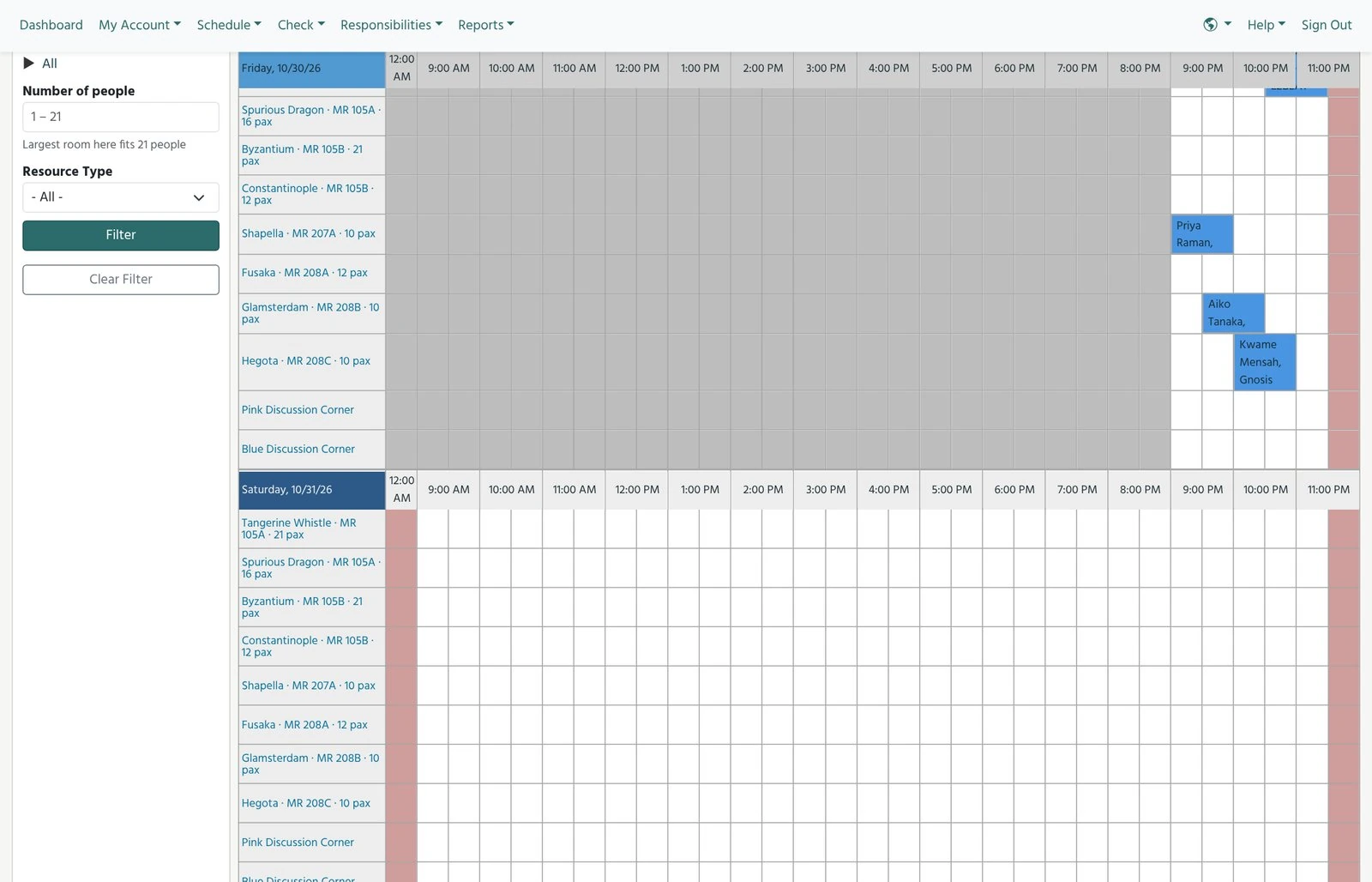
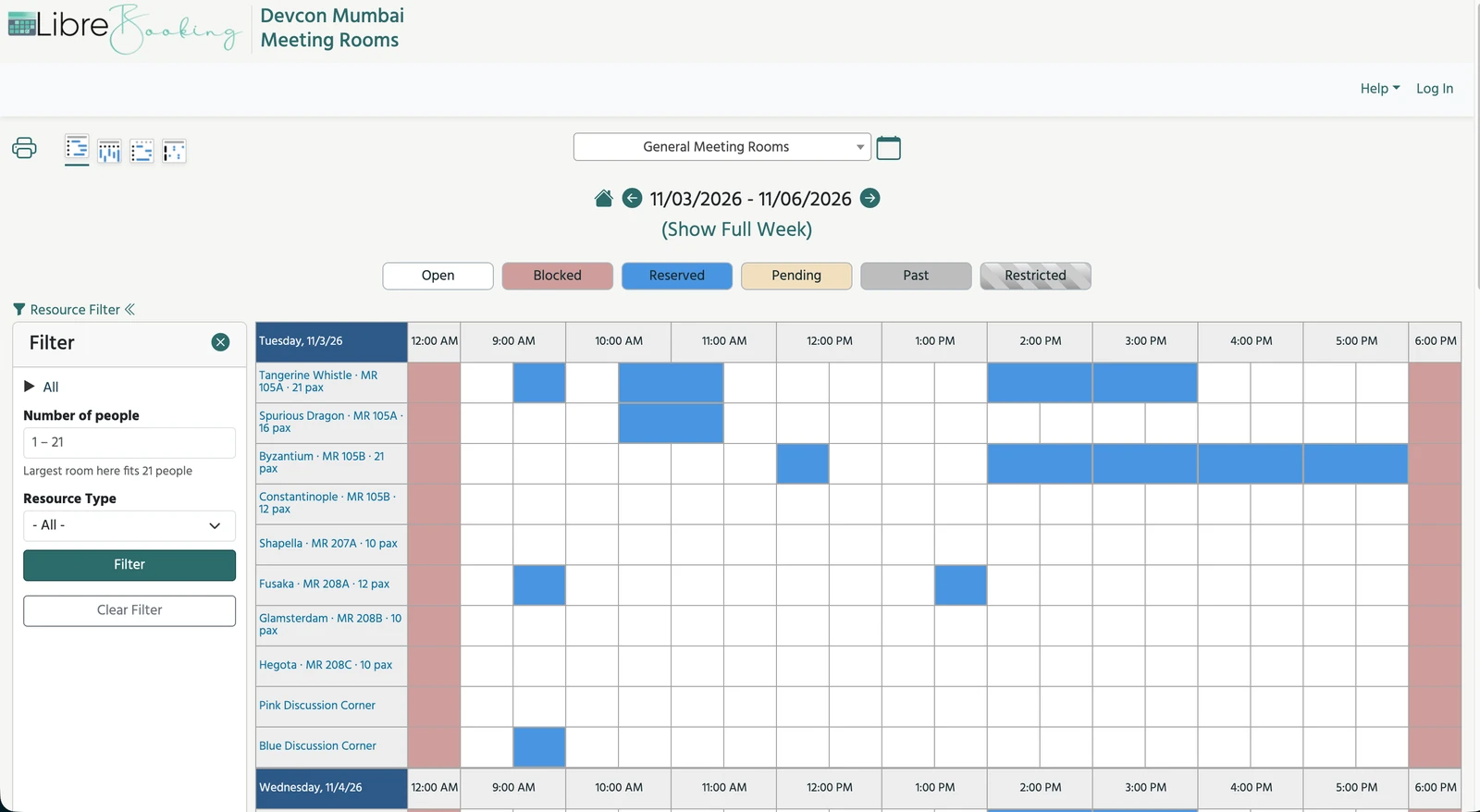
- The grid always starts on today. Rooms are rows, times are columns.
- Refresh the page every few minutes, and always before checking someone in. The grid does not update on its own.
On the grid, each blue block is a booking and shows the name and organisation the person typed. White cells are free. Grey cells are in the past or outside booking hours. Signed in as a volunteer, you see names. The public link only shows that a slot is taken.
Checking someone in
Check-in takes under a minute. It must happen between 10 minutes before the start and 5 minutes after it, or the room is released.
- Refresh the grid and tap the booking block for that room and time.
- Ask first, then compare. Ask "What name or email is the booking under?" Do not read the booking out to them. It should match two fields. Your name and organisation is what they typed when booking, for example Priya Raman, Lido. Owner shows attendees as Guest Guest followed by their email, which is normal for everyone who booked without an account. EF staff show their own name and @ethereum.org email.
- If they are unsure, ask to see the confirmation email on their phone. It names the room and time.
- Check the group fits. If more people turn up than the room seats, offer a bigger room that is free.
- Tap the yellow Check In - Released in N minutes button. You will see You are checked in. Tap Close and let them in.
Only the person who booked needs to match. The people they are meeting go in with them.
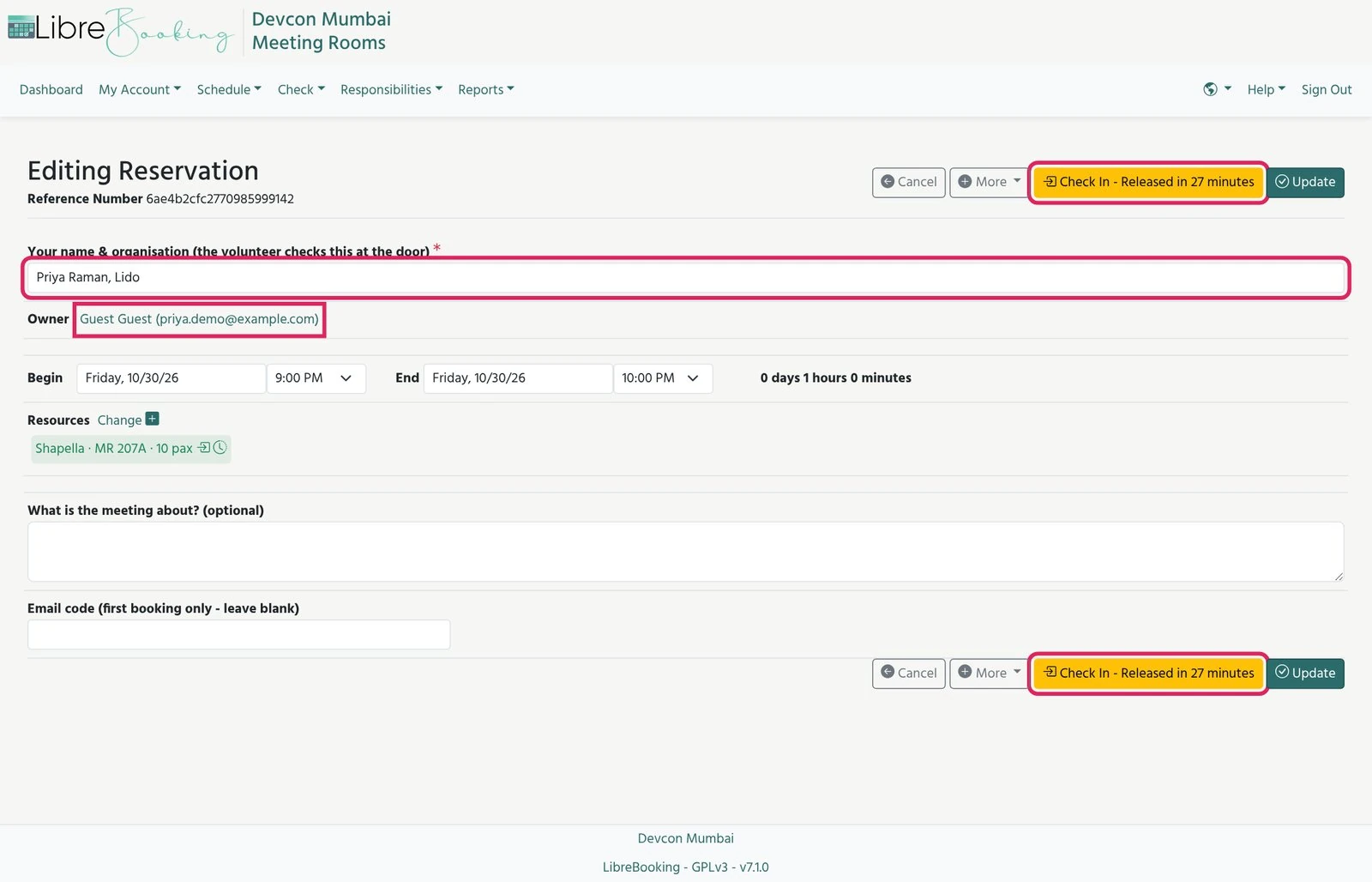
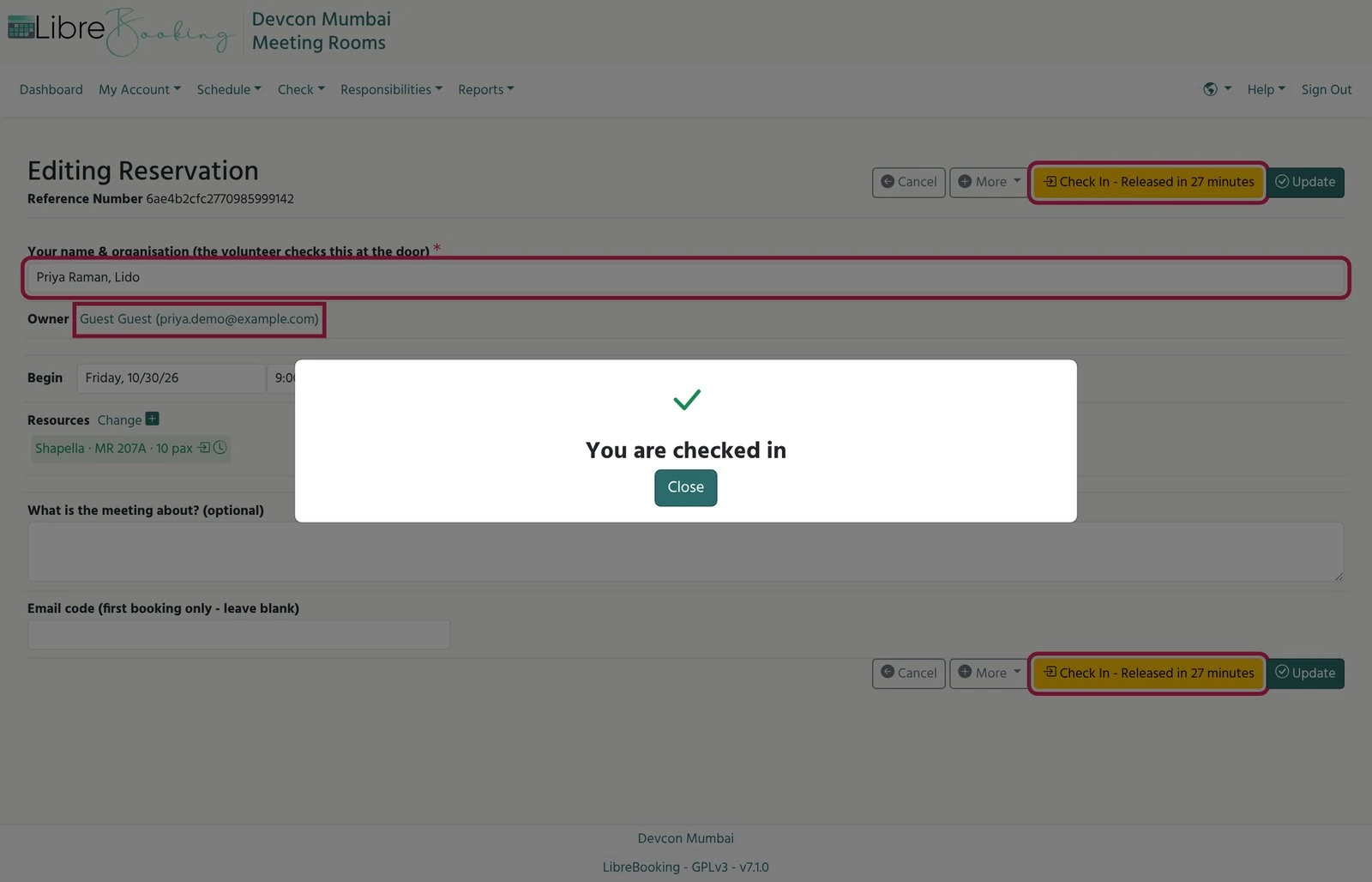
Leave two buttons alone on this page. Update saves edits, so only use it if you meant to change the booking. Cancel just closes the page without changing anything.
If there is no Check In button
| What you see | What it means | What to do |
|---|---|---|
| No button, start is more than 10 min away | Check-in has not opened yet | Ask them to come back closer to the time |
| No Check In button, or a Check Out button instead | Already checked in | Let them in. Only tap Check Out when the meeting has ended |
| The booking is gone from the grid | Released as a no-show (5 min after start) | If the room is still free, book it for them as a walk-in |
| Name or email does not match | Wrong room, wrong time, or not their booking | Check the grid for their name in other rooms. Do not let them in until it matches |
No-shows, walk-ins and changes
No-shows
You do not need to do anything. If nobody checks in within 5 minutes of the start, the system deletes the booking and the room turns white (free) on the grid. Refresh, then offer the room to anyone waiting.
Walk-ins (someone wants a room now)
Attendees cannot book a slot that has already started, so you book it for them.
- Refresh the grid and find a white (free) cell for now in a room that fits the group.
- Tap that cell. A New Reservation form opens with you as the owner.
- In Your name & organisation, type
Walk-in: Name, Organisation. - Set End to no more than 60 minutes after Begin. It cannot run into the next booking.
- Leave Email code blank and tap Create.
A walk-in for a slot that has already started is checked in automatically, so it will not be released. If you book a later slot for someone, check them in when they arrive, like any other booking.
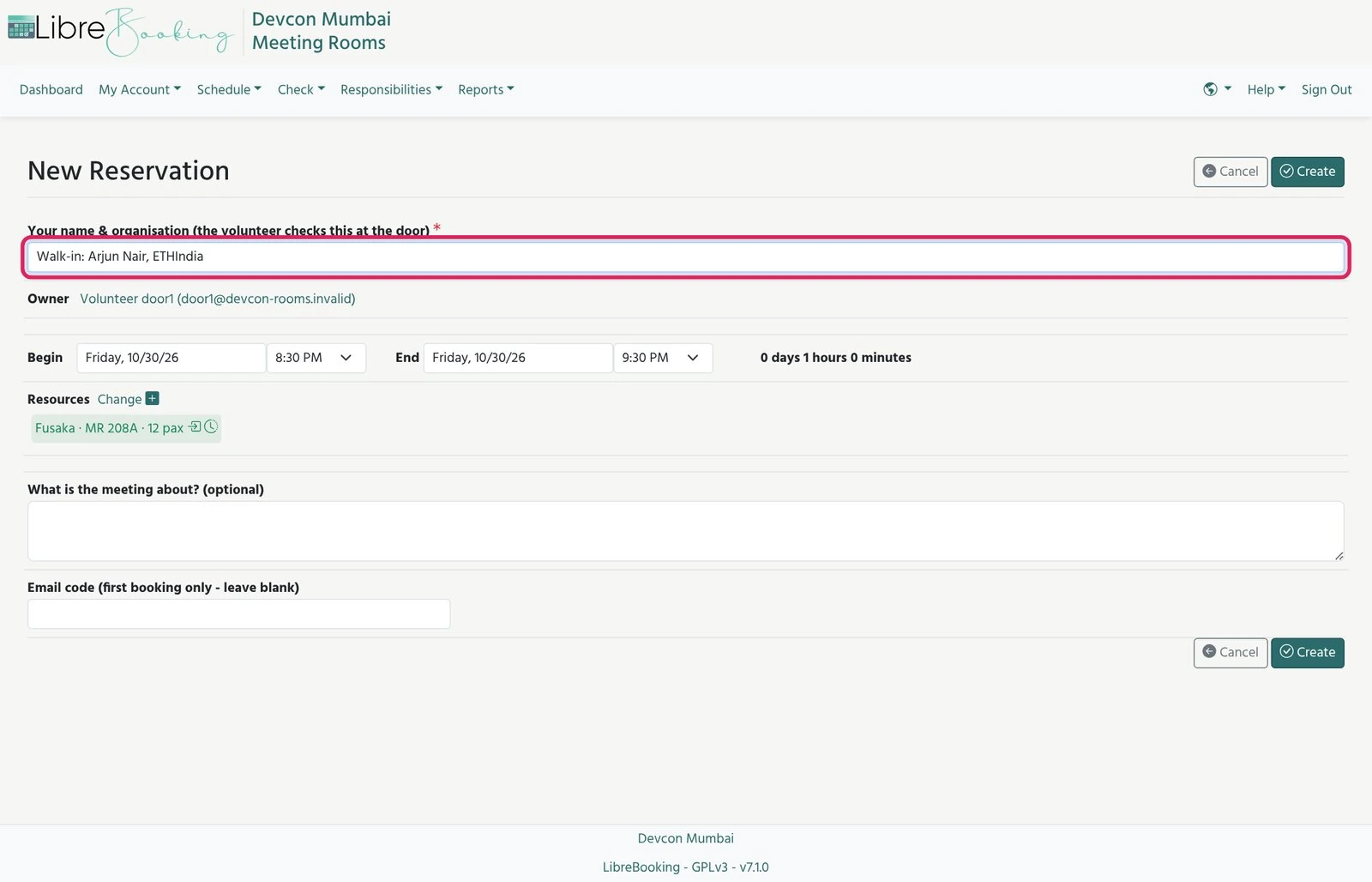
Volunteer accounts skip the limits. The system will not stop you booking more than 60 minutes, more than 2 hours a day, or an EF room for a non-EF guest. Keep walk-ins to 60 minutes, and only book EF-only rooms for EF staff.
Finding a booking
Use this when someone cannot find their booking on the grid, or only has a reference number.
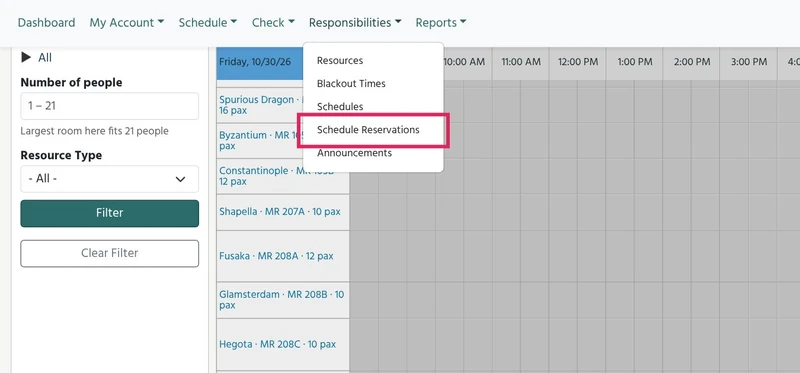
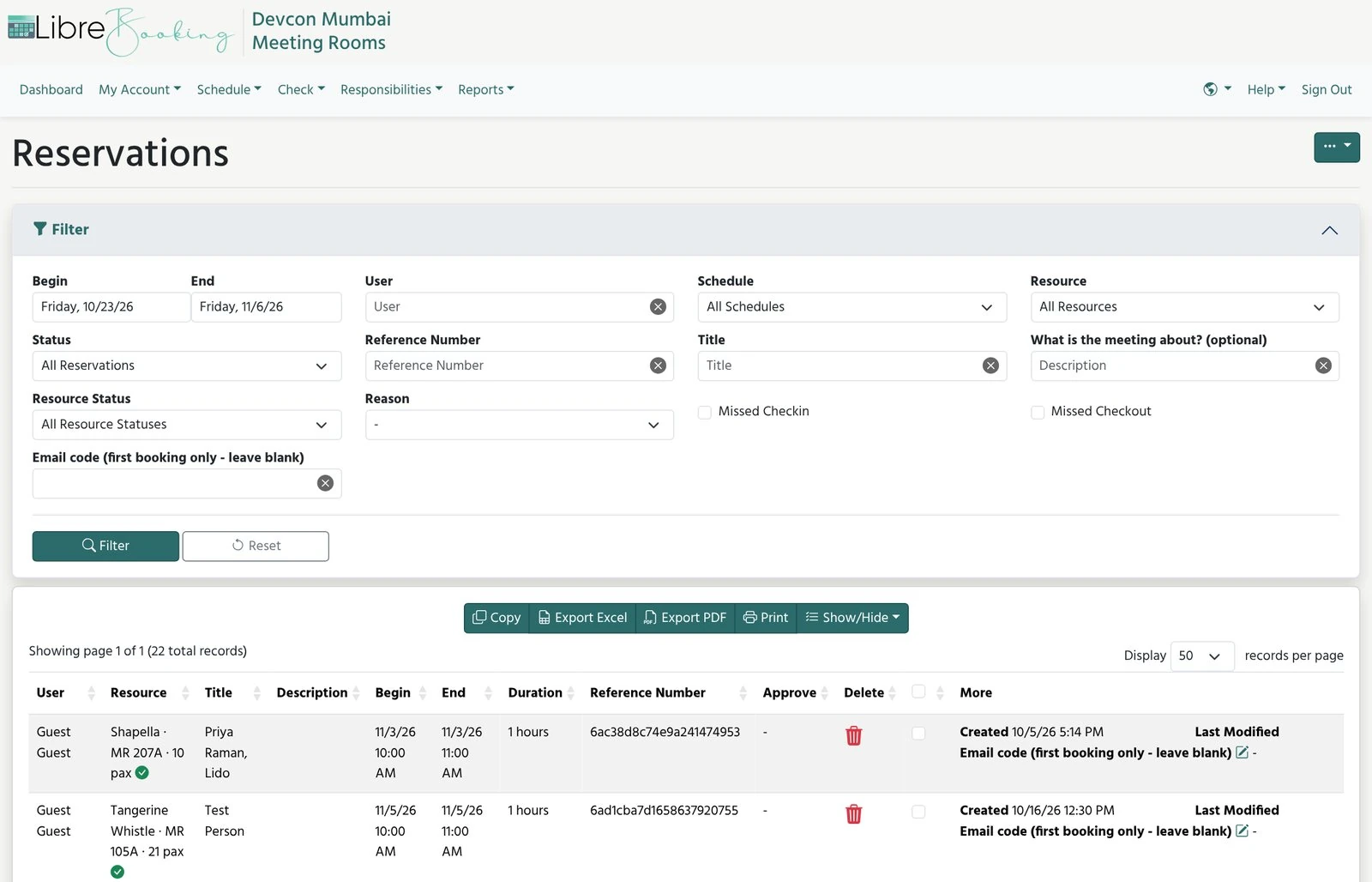
- Go to Responsibilities, then Schedule Reservations.
- Filter by Title (their name), Reference Number (in their confirmation email), Resource (room) or date.
- Tap the result to open it. You can check them in from there.
Quick alternative: use your browser's find (Ctrl+F or Cmd+F) on the grid page and type their name.
Ending early or cancelling
| Situation | What to do |
|---|---|
| Meeting finished early | Open the booking and tap Check Out. The rest of the slot becomes free |
| Attendee wants to cancel a future booking | Open the booking, then More, then Delete. They can also cancel from their confirmation email |
| A group is overstaying into the next booking | Politely tell them the next group has the room. Show them the grid if needed. Escalate if they will not leave |
Questions attendees ask at the door
| They say | You answer or do |
|---|---|
| How do I book? | Go to rooms.devcon.org, tap a free slot, enter your email, then your name and organisation. Pick up to 60 min and tap Create |
| It asked for an email code | First booking only. A 6-digit code goes to their email. They type it in Email code and tap Create again |
| The code never arrived | Check spam and promotions and wait a minute. Then clear the Email code field and tap Create for a new one. Still nothing: book it for them as a walk-in if the room is free now, and tell the Special Rooms lead (email may be down) |
| It says the code is wrong or expired | Codes last 15 minutes. Clear the field and tap Create to get a new one |
| My second booking asks me to log in | Their password is in the welcome email from their first booking. Forgot password on the login page also works |
| This room is reserved for the EF team | Some rooms are EF only. Pick any other room |
| I cannot book the slot that is happening now | Book it for them as a walk-in |
| I need more than an hour | Book the next slot as a separate booking, up to 2 hours a day in total |
| We are more than 21 people | If the group is bigger than the largest bookable room, send them to the info desk |
| Who is in this room? Who booked after me? | Do not share other people's names or emails. Just say whether the room is free or taken, and until when |
Keep the volunteer screen turned away from attendees where you can. It shows every booker's name and email.
What not to touch, and who to call
Your login can also change room settings, so a few menus are off-limits. Under Responsibilities, leave Resources, Blackout Times, Schedules and Announcements to the ops team. A change there affects every room and every booking.
- Do not book rooms for yourself or friends.
- Do not delete bookings except a cancellation the attendee asked for.
- If a room cannot be used (broken screen, no AC, locked), tell the Special Rooms lead. Ops will block it in the system.
| Problem | Who |
|---|---|
| Room issue: AV, AC, cleaning, locked door | The Special Rooms lead, who loops in the venue team |
| Site down, error messages, cannot log in | The Special Rooms lead, who loops in the tech team |
| Several people say booking emails or codes are not arriving | The Special Rooms lead |
| Group will not leave, or two groups claim the same room | The Special Rooms lead, or your floor lead |
| Lost or shared volunteer login | The Special Rooms lead, straight away, so the password can be changed |
Contact: the Special Rooms lead, on the team's Telegram group, or a direct message if urgent. End of shift: hand the device to the next volunteer still signed in, or tap Sign Out (top right) if nobody is taking over.
Interview and Press Room
Make sure only the right people get into the Interview Room, and keep interviews running on time. You do not produce or moderate anything. Your main responsibility is to control access and timing.
Location at CCL: still to be confirmed. Devcon lead: the press lead from the Devcon comms team.
Access: who can enter
The Interview Room is closed access. Only two groups can enter: speakers on the daily interview schedule, during their own slot, and media with the special Press wristband.
No schedule, no wristband, no entry. That includes other attendees, speakers who are not scheduled, their friends or teams, and media without the wristband. Be polite and firm, and send them to the press lead. A regular event badge or a general press credential does not give access. Only the special wristband does.
Schedule
You get a daily agenda from the press lead. It lists each interview with the time, speaker, outlet and contacts. All times are local, with 10 to 15 minute buffers between interviews. Arrive 15 minutes before your shift starts. At shift change, brief the next team on any open issues and on changes to the schedule.
Every interview
| When | What you do |
|---|---|
| 15 min before | Check that the speaker and the journalist are on their way or already there. If either is not responding, message the press lead |
| Start | Check both in against the daily agenda, check the journalist's wristband, and remind them of the end time |
| 5 min before the end | Give a heads-up so they wrap up, and make sure the next speaker and journalist are ready |
| End | The interview ends on time, even if it started late, because speakers often have talks right after. Leave the room clear and ready for the next interview |
The press lead handles all the content side: topics, on and off the record, and spokesperson briefings. You only handle access and timing.
Room rules
- Speaker or journalist does not show: message the press lead right away. Do not swap anyone in yourself.
- Media asks for an unscheduled interview: they cannot book on the spot. Send them to the press lead.
- Speaker wants to extend or move their slot: only the press lead can approve this.
- Room is free between interviews: wristbanded media can use the workspace, but they must leave the interview area clear for the next slot.
- Keep the room quiet during interviews, and leave the room as you found it.
- Any issue with the room, equipment, Wi-Fi or power: tell the AV team on site, and message the press lead.
Contacts: the press lead for schedule, media, access and escalations, with back-up from the comms team. When in doubt, message the press lead.
Podcast Room
Keep the Podcast Room running on time and stay in touch with the content lead. You do not produce anything. Make sure each slot starts and ends when it should.
Location: the Podcast Room in the Content Corner (where it sits at CCL is still to be confirmed). It is a recording room for supporters, podcasters and creators. Devcon provides the space and the equipment, and the guest brings the show.
Schedule
Every slot is 1 hour. You get a daily agenda with who is recording in each slot and their contacts. Podcasters arrive 15 minutes before their slot. Volunteers arrive 15 minutes before their shift. At shift change, brief the next team on any open issues.
At Devcon 8 the room opened in the afternoon of the first day, ran 10:00 to 18:00 on the middle days and closed at 14:00 on the final day, with three volunteers per shift. Devcon 9 hours are still to be confirmed.
What the room has
- One Sony FX6 camera with lens and tripod, and a monitor to check framing.
- Two lapel mics, two table podcast mics and an audio mixer.
- Lighting set up for the room, and power strips.
- One camera and audio operator on site who runs the setup.
Bookers bring their own guests, topic and run of show, somewhere to store their files, and chargers for their own devices. Creators coordinate their own speakers and guests directly, and a show can have more than one speaker. You only handle the timing.
Every slot
| When | What you do |
|---|---|
| 10 min before | Check the creator is on their way or already at the room. If they have not shown up, message the content lead |
| Start | Check them in against the daily agenda and remind them of the end time |
| 10 min before the end | Give a heads-up so they wrap up, and make sure the next creator is ready to go in |
| End | The slot ends on time, even if they started late, because late starts cannot be made up. Leave the room clear and ready for the next slot |
Empty slots and walk-ins
- Slot is empty or the creator does not show: message the content lead right away. They will try to find someone to fill it.
- If the current slot is empty, anyone who asks can use the room until the slot's end time.
- If a recording finishes early, they can use the remaining time, but must be out before the next slot starts.
- If a podcaster arrives more than 15 minutes late and someone else has already taken the room, they lose their slot.
Room rules
- 1-hour slots. Start and end on time.
- No shilling projects. No sponsored, paid or promotional content is recorded in the room.
- Leave the room as you found it.
- Any issue with the room or equipment: tell the operator on site and the content lead.
Contact: the content lead is your point of contact for everything, on the team's Telegram group. When in doubt, message them.
Your team
Each area has two Volunteer Leads, one for the morning shift and one for the afternoon, and a lead from the Devcon team for the workstream. Your Volunteer Lead is your first point of contact on shift. Names for Devcon 9 are TBC.
Still to confirm for Lisbon
Nothing here is guessed. These stay marked until the Devcon team confirms them.
- Which CCL rooms open for booking, and their names on the Devcon map.
- Booking system for Devcon 9.
- Press and podcast room locations.
Plan your commute with the shift commute plan, check what to carry, and save the emergency numbers.